Teknikal ICT / E-mel - Microsoft Outlook
Sebarang Pertanyaan?
Jika anda mempunyai sebarang soalan, taip kata kunci carian anda di bawah.
Soalan Lazim
Reduce the size of pictures and attachments in Outlook email messages
Dikemaskini terakhir 4 tahun yang lalu
Photos and other types of attachments can vary in size. Many email systems, including Gmail, Yahoo, and Exchange limit the size of email messages you can send. If you're concerned about the size of your email messages or if you've received a message that your email is too large to send, there are several steps you can take to reduce the size of the attached pictures and other documents.
In addition to restricting the size of individual messages, some email systems put a cap on the total size of your mailbox. Since each message you send is stored in your Sent Items folder, reducing the size of attachments can also help keep your mailbox size small.
a. Insert and resize pictures in the body of and email message
Insert a picture
To insert a picture in the body of your email message, place your cursor in the body of the email message, select the Insert menu, and then choose Pictures from the Illustrations group on the Ribbon.
If the picture looks too big (or too small), you can use the sizing handles on the picture to resize the image.
Resize a picture
You can change the visible size of the picture; for example, how much of the screen it takes up, without changing the file size or resolution of the picture. This, however, will not shrink the total size of the email message you're sending.
- Click or tap the picture to display a small circular sizing handle at each corner of the picture.
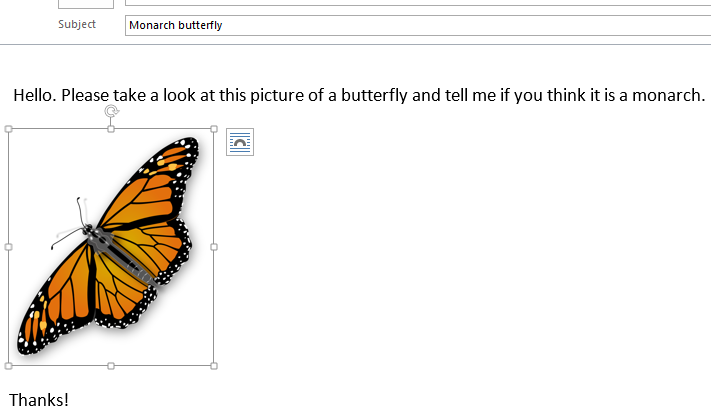
- Click (or press and hold) one of handles, then drag the sizing handle toward the center to reduce the size of the image or away from the center to increase the size of the image.
Tip: There are additional sizing handles in the center of each side of the picture. If you want to maintain the picture's proportions, only use the sizing handles in the corners. Using the handles in the center of each side will distort the picture.
Resize a picture to exact dimensions
- Select the picture you want to resize.
- On the Format tab, in the Size group, enter the required height. The width changes automatically to stay in proportion to the height.
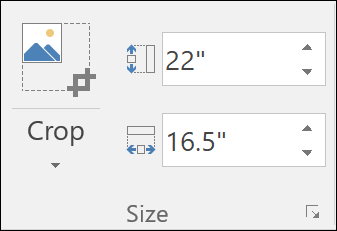
If you want to change the height and width separately, clear the Lock aspect ratio check box before you change the required height or width in step 2.
Compress pictures to reduce file size
Compressing a picture maintains the height and width of the picture, but reduces the resolution. Lower resolution pictures have a smaller file size.
- Select the picture or pictures you need to reduce.
- Under Picture Tools on the Format tab, select Compress Pictures
 from the Adjust group. Depending on your screen resolution, you may only see the Compress Pictures icon.
 - Select the compression and resolution options and then select OK. For pictures that won't be printed, Web (150 ppi) is the most common resolution.
Important: Compressing a picture to reduce the size of the file changes the amount of detail retained in the source picture. This means that after compression, the picture can look different than before it was compressed.
b. Attach a picture to your email message and resize it
When you attach a picture as a file, the picture won't display directly in the body of the email message. Instead, an icon of the picture will appear under the message subject. For image files, you'll also see a small preview of the picture along with the name and size of the file.
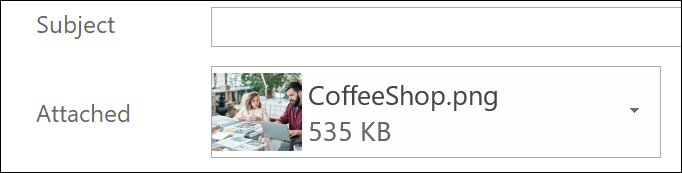
If the picture attachment is too large, you can tell Outlook to resize the picture for you when you send the message.
- Select File.
- If your image is large, you'll see this message: Some recipients may not receive this message because of image attachments. Resizing large images may help the message get delivered. Resized images will be a maximum of 1024x768 pixels.
- Select Resize large images when I send this message.
- Select the left arrow at the top left corner of the screen to return to your message. Compose your message, and when you select Send, all picture attachments will be automatically resized.
Note: If you embed the picture in the message body — the picture appears in the message — by using the Picture command in the Illustrations group, the image attachment resize feature is not available.
c. Attch and reduce the size of non-picture attachments
Documents, spreadsheets, PDF files, and other types of files can vary greatly in size. There are several methods you can use to keep the size of your email messages and attachments small when sending these files.
Note: For more information specific to reducing picture files, see the section Insert and resize pictures in the body of an email message.
Send a link to the file
- In your email message, select Attach File from the ribbon.
- Select your file.
- If the file is already stored on OneDrive, OneDrive for Business, or a SharePoint site, you can select Send a link. This attaches a shortcut to the file to your email message, not the file itself. Recipients can open the shortcut and download or open the file.
Copy a sharing link from another cloud storage service
Most cloud storage solutions such as Dropbox or Google Drive allow you to get a shareable link to your file. See their help files for more information on how to obtain a sharing link. Once you have a sharing link, paste it in the body of your email message.
Compress your files before sending
Most files can be compressed into a zip file to reduce their size. Windows allows you to create and open zip files without any additional software.
- Navigate to the folder that contains the file you want to send.
- Select a file. To select multiple files, press and hold CTRL as you click each file.
- Right-click the selection, select Send To > Compressed (zipped) Folder.
- This creates a new zip file that contains the file or files you selected in step 2. The name of the zip file is chosen automatically from the name of the original file.
Either return to your email message and choose Attach File from the ribbon, or right-click the new zip file, select Send To > Mail Recipient to open a new email message with the file already attached.